In this blog post, we discuss how to create NGINX rewrite rules (the same methods work for both NGINX Plus and the open source NGINX software). Rewrite rules change part or all of the URL in a client request, usually for one of two purposes:
- To inform clients that the resource they’re requesting now resides at a different location. Example use cases are when your website’s domain name has changed, when you want clients to use a canonical URL format (either with or without the www prefix), and when you want to catch and correct common misspellings of your domain name. The
return and rewrite directives are suitable for these purposes.
- To control the flow of processing within NGINX and NGINX Plus, for example to forward requests to an application server when content needs to be generated dynamically. The
try_files directive is often used for this purpose.
Note: To learn how to convert Apache HTTP server rewrite rules to NGINX rewrite rules, see our companion blog post,
Converting Apache Rewrite Rules to NGINX Rewrite Rules.
We’ll assume you’re familiar with the
HTTP response codes and with regular expressions (NGINX and NGINX Plus use the
Perl syntax).
Comparing the return, rewrite, and try_files Directives
The two directives for general‑purpose NGINX rewrite are
return and
rewrite, and the
try_files directive is a handy way to direct requests to application servers. Let’s review what the directives do and how they differ.
The return Directive
The
return directive is the simpler of the two general‑purpose directives and for that reason we recommend using it instead of
rewrite when possible (more later about the why and when). You enclose the
return in a
server or
location context that specifies the URLs to be rewritten, and it defines the corrected (rewritten) URL for the client to use in future requests for the resource.
Here’s a very simple example that redirects clients to a new domain name:
server {
    listen 80;
    listen 443 ssl;
    server_name www.old-name.com;
    return 301 $scheme://www.new-name.com$request_uri;
}
The
listen directives mean the
server block applies to both HTTP and HTTPS traffic. The
server_name directive matches request URLs that have domain name
www.old‑name.com. The
return directive tells NGINX to stop processing the request and immediately send code
301 (Moved Permanently) and the specified rewritten URL to the client. The rewritten URL uses two
NGINX variables to capture and replicate values from the original request URL:
$scheme is the protocol (
http or
https) and
$request_uri is the full URI including arguments.
For a code in the
3xx series, the
url parameter defines the new (rewritten) URL.
return (301 | 302 | 303 | 307) url;
For other codes, you optionally define a text string which appears in the body of the response (the standard text for the HTTP code, such as
Not Found for
404, is still included in the header). The text can contain NGINX variables.
return (1xx | 2xx | 4xx | 5xx) [“text“];
For example, this directive might be appropriate when rejecting requests that don’t have a valid authentication token:
return 401 “Access denied because token is expired or invalid”;
There are also a couple syntactic shortcuts you can use, such as omitting the code if it is
302; see the reference documentation for the
return directive.
(In some cases, you might want to return a response that is more complex or nuanced than you can achieve in a text string. With the
error_page directive, you can return a complete custom HTML page for each HTTP code, as well as change the response code or perform a redirect.)
So the
return directive is simple to use, and suitable when the redirect meets two conditions: the rewritten URL is appropriate for every request that matches the
server or
location block, and you can build the rewritten URL with standard NGINX variables.
The rewrite Directive
But what if you need to test for more complicated distinctions between URLs, capture elements in the original URL that don’t have corresponding NGINX variables, or change or add elements in the path? You can use the
rewrite directive in such cases.
Like the
return directive, you enclose the
rewrite directive in a
server or
location context that defines the URLs to be rewritten. Otherwise, the two directives are rather more different than similar, and the
rewrite directive can be more complicated to use correctly. Its syntax is simple enough:
rewrite regex URL [flag];
But the first argument,
regex, means that NGINX Plus and NGINX rewrite the URL only if it matches the specified regular expression (in addition to matching the
server or
location directive). The additional test means NGINX must do more processing.
A second difference is that the
rewrite directive can return only code
301 or
302. To return other codes, you need to include a
return directive after the
rewrite directive (see the example below).
And finally the
rewrite directive does not necessarily halt NGINX’s processing of the request as
return does, and it doesn’t necessarily send a redirect to the client. Unless you explicitly indicate (with flags or the syntax of the URL) that you want NGINX to halt processing or send a redirect, it runs through the entire configuration looking for directives that are defined in the
Rewrite module (
break,
if,
return,
rewrite, and
set), and processes them in order. If a rewritten URL matches a subsequent directive from the Rewrite module, NGINX performs the indicated action on the rewritten URL (often rewriting it again).
This is where things can get complicated, and you need to plan carefully how you order the directives to get the desired result. For instance, if the original
location block and the NGINX rewrite rules in it match the rewritten URL, NGINX can get into a loop, applying the rewrite over and over up to the built‑in limit of 10 times. To learn all the details, see the documentation for the
Rewrite module. As previously noted, we recommend that where possible you use the
return directive instead.
[ngx_snippet name=’rewrite-example-mp3′]
We mentioned above that you can add flags to a
rewrite directive to control the flow of processing. The
last flag in the example is one of them: it tells NGINX to skip any subsequent Rewrite‑module directives in the current
server or
location block and start a search for a new
location that matches the rewritten URL.
The final
return directive in this example means that if the URL doesn’t match either
rewrite directive, code
403 is returned to the client.
The try_files directive
Like the
return and
rewrite directives, the
try_files directive is placed in a
server or
location block. As parameters, it takes a list of one or more files and directories and a final URI:
try_files file … uri;
NGINX checks for the existence of the files and directories in order (constructing the full path to each file from the settings of the
root and
alias directives), and serves the first one it finds. To indicate a directory, add a slash at the end of the element name. If none of the files or directories exist, NGINX performs an internal redirect to the URI defined by the final element (
uri).
For the
try_files directive to work, you also need to define a
location block that captures the internal redirect, as shown in the following example. The final element can be a named location, indicated by an initial at‑sign (
@).
The
try_files directive commonly uses the
$uri variable, which represents the part of the URL after the domain name.
In the following example, NGINX serves a default GIF file if the file requested by the client doesn’t exist. When the client requests (for example)
http://www.domain.com/images/image1.gif, NGINX first looks for
image1.gif in the local directory specified by the
root or
alias directive that applies to the location (not shown in the snippet). If
image1.gif doesn’t exist, NGINX looks for
image1.gif/, and if that doesn’t exist, it redirects to
/images/default.gif. That value exactly matches the second
location directive, so processing stops and NGINX serves that file and marks it to be cached for 30 seconds.
location /images/ {
    try_files $uri $uri/ /images/default.gif;
}

location = /images/default.gif {
    expires 30s;
}
Examples – Standardizing the Domain Name
One of the most common uses of NGINX rewrite rules is to capture deprecated or nonstandard versions of a website’s domain name and redirect them to the current name. There are several related use cases.
Redirecting from a Former Name to the Current Name
This sample NGINX rewrite rule permanently redirects requests from
www.old‑name.com and
old‑name.com to
www.new‑name.com, using two NGINX variables to capture values from the original request URL –
$scheme is the original protocol (
http or
https) and
$request_uri is the full URI (following the domain name), including arguments:
server {
    listen 80;
    listen 443 ssl;
    server_name www.old-name.com old-name.com;
    return 301 $scheme://www.new-name.com$request_uri;
}
Because
$request_uri captures the portion of the URL that follows the domain name, this rewrite is suitable if there’s a one‑to‑one correspondence of pages between the old and new sites (for example,
www.new‑name.com/about has the same basic content as
www.old‑name.com/about). If you’ve reorganized the site in addition to changing the domain name, it might be safer to redirect all requests to the home page instead, by omitting
$request_uri:
server {
    listen 80;
    listen 443 ssl;
    server_name www.old-name.com old-name.com;
    return 301 $scheme://www.new-name.com;
}
Some other blogs about rewriting URLs in NGINX use the
rewrite directive for these use cases, like this:
# NOT RECOMMENDED
rewrite ^ $scheme://www.new-name.com$request_uri permanent;
This is less efficient than the equivalent
return directive, because it requires NGINX to process a regular expression, albeit a simple one (the caret [
^ ], which matches the complete original URL). The corresponding
return directive is also easier for a human reader to interpret:
return 301 more clearly indicates that NGINX returns code
301 than the
rewrite ... permanent notation does.
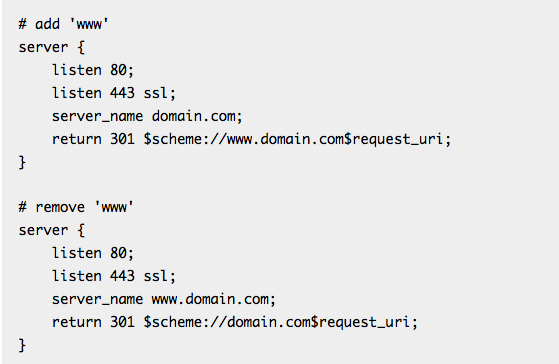
Adding and Removing the www Prefix
These examples add and remove the
www prefix:
# add ‘www’
server {
    listen 80;
    listen 443 ssl;
    server_name domain.com;
    return 301 $scheme://www.domain.com$request_uri;
}

# remove ‘www’
server {
    listen 80;
    listen 443 ssl;
    server_name www.domain.com;
    return 301 $scheme://domain.com$request_uri;
}
Again,
return is preferable to the equivalent
rewrite, which follows. The
rewrite requires interpreting a regular expression –
^(.*)$ – and creating a custom variable (
$1) that in fact is equivalent to the built‑in
$request_uri variable.
# NOT RECOMMENDED
rewrite ^(.*)$ $scheme://www.domain.com$1 permanent;
Redirecting All Traffic to the Correct Domain Name
Here’s a special case that redirects incoming traffic to the website’s home page when the request URL doesn’t match any
server and
location blocks, perhaps because the domain name is misspelled. It works by combining the
default_server parameter to the
listen directive and the underscore as the parameter to the
server_name directive.
server {
    listen 80 default_server;
    listen 443 ssl default_server;
    server_name _;
    return 301 $scheme://www.domain.com;
}
We use the underscore as the parameter to
server_name to avoid inadvertently matching a real domain name – it’s safe to assume that no site will ever have the underscore as its domain name. Requests that don’t match any other
server blocks in the configuration end up here, though, and the
default_server parameter to
listen tells NGINX to use this block for them. By omitting the
$request_uri variable from the rewritten URL, we redirect all requests to the home page, a good idea because requests with the wrong domain name are particularly likely to use URIs that don’t exist on the website.
Example – Forcing all Requests to Use SSL/TLS
This
server block forces all visitors to use a secured (SSL/TLS) connection to your site.
server {
    listen 80;
    server_name www.domain.com;
    return 301 https://www.domain.com$request_uri;
}
Some other blogs about NGINX rewrite rules use an
if test and the
rewrite directive for this use case, like this:
# NOT RECOMMENDED
if ($scheme != “https”) {
    rewrite ^ https://www.mydomain.com$uri permanent;
}
But this method takes extra processing because NGINX must both evaluate the
if condition and process the regular expression in the
rewrite directive.
Example – Enabling Pretty Permalinks for WordPress Websites
NGINX and NGINX Plus are very popular application delivery platforms for websites that use WordPress. The following
try_files directive tells NGINX to check for the existence of a file,
$uri, and then directory,
$uri/. If neither the file or directory exists, NGINX returns a redirect to
/index.php and passes the query‑string arguments, which are captured by the
$args parameter.
location / {
    try_files $uri $uri/ /index.php?$args;
}
Example – Dropping Requests for Unsupported File Extensions
For various reasons, your site might receive request URLs that end in a file extension corresponding to an application server you’re not running. In this example from the
Engine Yard blog, the application server is Ruby on Rails, so requests with file types handled by other application servers (Active Server Pages, PHP, CGI, and so on) cannot be serviced and need to be rejected. In a
server block that passes any requests for dynamically generated assets to the app, this
location directive drops requests for non‑Rails file types before they hit the Rails queue.
location ~ .(aspx|php|jsp|cgi)$ {
    return 410;
}
Strictly speaking, response code
410 (Gone) is intended for situations when the requested resource used to be available at this URL but is no longer, and the server does not know its current location, if any. Its advantage over response code
404 is that it explicitly indicates the resource is permanently unavailable, so clients won’t send the request again.
You might want to provide clients with a more accurate indication of the reason for the failure, by returning response code
403 (Forbidden) and an explanation such as
"Server handles only Ruby requests" as the text string. As an alternative, the
deny all directive returns
403 without an explanation:
location ~ .(aspx|php|jsp|cgi)$ {
    deny all;
}
Code
403 implicitly confirms that the requested resource exists, so code
404 might be the better choice if you want to achieve “security through obscurity” by providing the client with as little information as possible. The downside is that clients might repeatedly retry the request because
404 does not indicate whether the failure is temporary or permanent.
Example – Configuring Custom Rerouting
In this example from
MODXCloud, you have a resource that functions as a controller for a set of URLs. Your users can use a more readable name for a resource, and you rewrite (not redirect) it to be handled by the controller at
listing.html.
rewrite ^/listings/(.*)$ /listing.html?listing=$1 last;
As an example, the user‑friendly URL
http://mysite.com/listings/123 is rewritten to a URL handled by the
listing.html controller,
http://mysite.com/listing.html?listing=123.
Related Documentation
Configuring NGINX and NGINX Plus as a Web Server